
Why Estimates?
We built ColorInvoice to make invoicing simple. But over the past few weeks, a pattern kept showing up in conversations with early users: before an invoice gets sent, there's often a back-and-forth. A client asks "how much would this cost?" and you put together a rough number in an email, a Google Doc, or sometimes just a text message. Then when they agree, you manually recreate that same information as an invoice.
That felt like a gap we could close.
The honest answer is that we were watching how people actually used the app. Several users told us they were creating "Draft" invoices as makeshift quotes — sending screenshots to clients, waiting for approval, then editing the draft into a real invoice. It worked, but it was clunky. The invoice number would already be assigned, the status tracking didn't reflect what was really happening, and there was no clean record of what was proposed versus what was agreed upon.
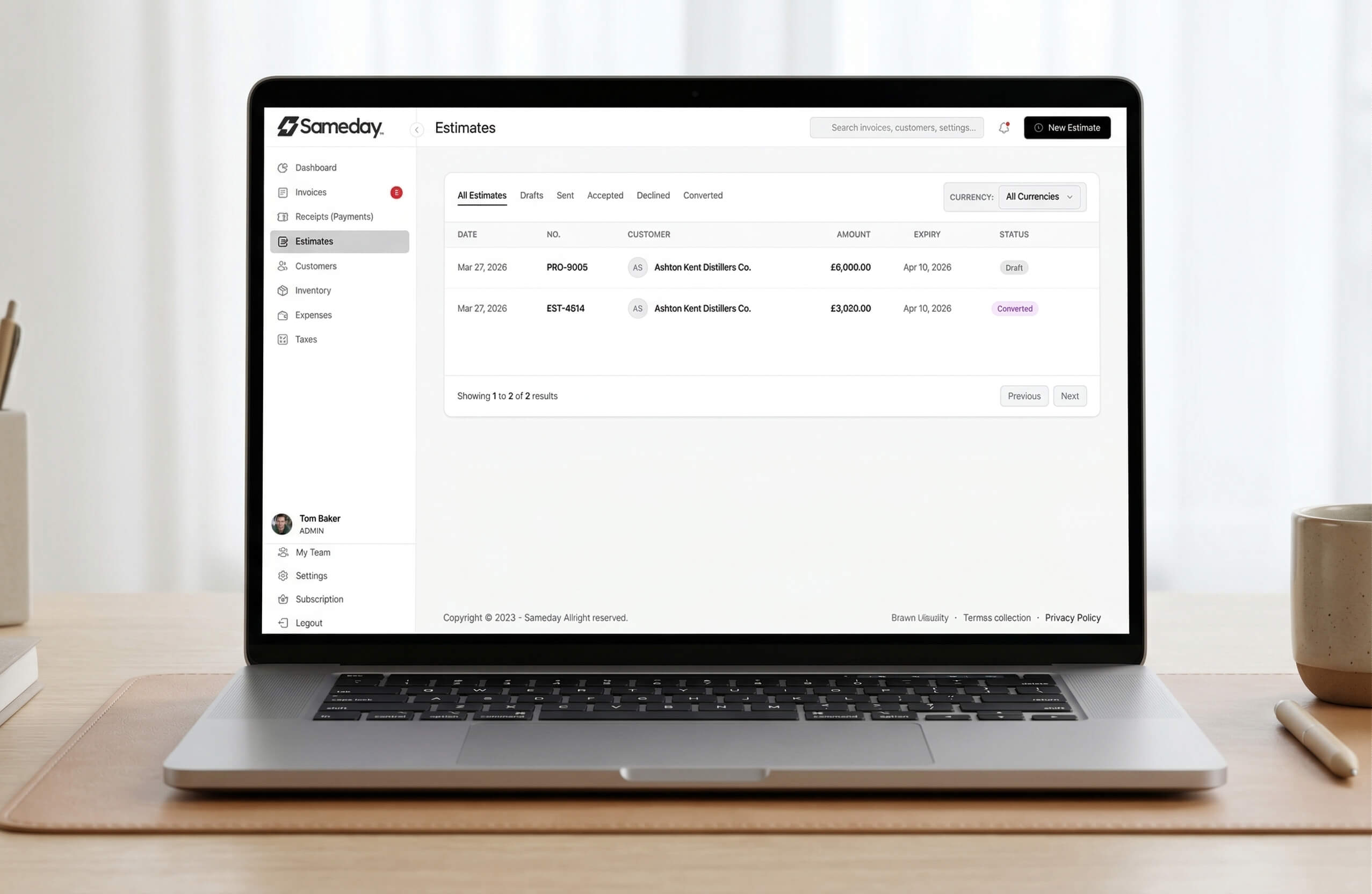
So we built a proper Estimates module. An estimate lives as its own document with its own lifecycle: you create it, send it, the client accepts or declines, and if they accept, you convert it into an invoice with one click. All the line items, customer details, and notes carry over. The estimate gets marked as "Converted" with a direct link to the invoice it became. You can then even set up the resulting invoice as a recurring schedule if it's ongoing work.
No double entry. No copy-pasting.
Why It's Hidden by Default
Not everyone needs estimates. If you're a freelancer sending invoices for completed work, or a small shop billing regulars, adding another menu item just creates noise. We didn't want to clutter the sidebar for users who have no use for the feature.
So we made it opt-in. If you want it, you turn it on. If you don't, it stays out of your way. That felt more respectful of the workflow you've already built around the tool.
How to Activate Estimates
From your admin dashboard, click settings
Scroll to Section 4: Workflow Preferences
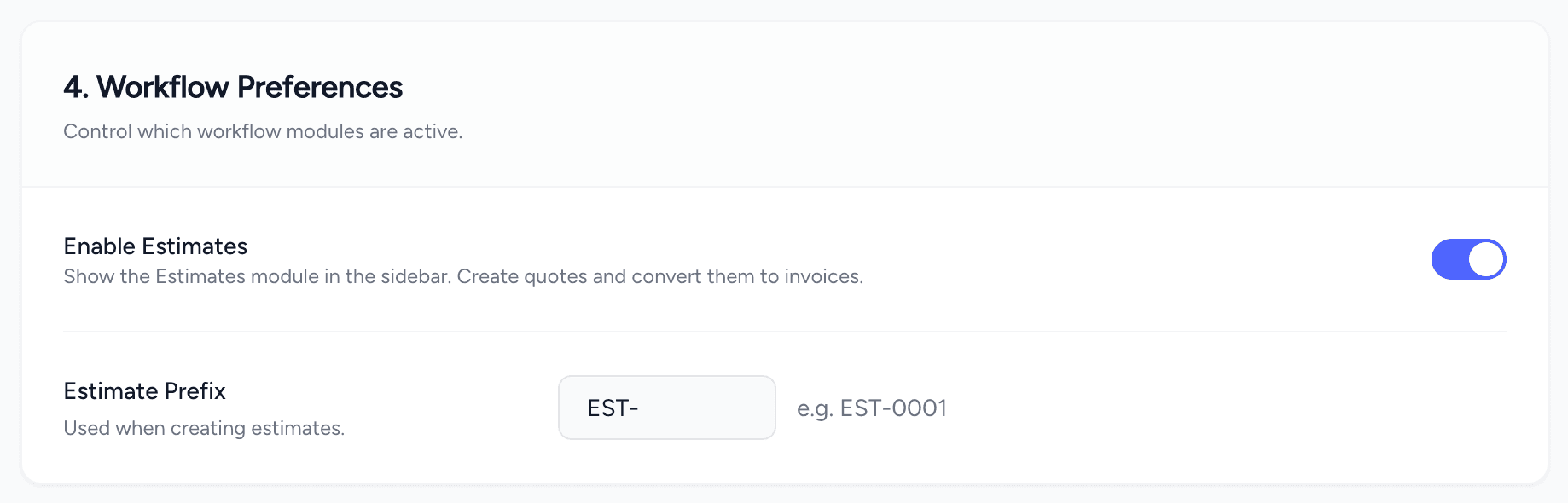
Toggle Enable Estimates on
Hit Save
That's it. An "Estimates" link will now appear in your sidebar. You can also set a custom prefix for your estimate numbers (the default is EST-). Want to call them something else entirely? You can choose between Estimate, Quote, or Proforma Invoice as your document label.
How the Estimates Feature Works
If you change your mind about the feature, toggle it off in Settings and the sidebar link disappears. Your existing estimates stay safe in the database, and they'll be there if you turn it back on in the future. Your team members with Accountant access can create and manage estimates too. And when you're ready to send them, you don't need any SMTP setup: ColorInvoice handles delivery automatically.
Ready to upgrade your billing experience?
Stop sending generic PDFs and maintain your brand identity down to the final receipt.
Start your 5-day free trial